Configuring Meters and Input Owners
The Meters/Owners page displays a hierarchy of all meters and input owners defined in the system. From this page you can create and configure meter hierarchies, meters, meter groups, input owners, and input owner groups. The default hierarchies displayed include All Targets, Meter Hierarchies, Meter Groups, Misconfigured Meters/Groups, All Input Owners, Input Owner Groups, and Misconfigured Owners.
Note: The terms "Input Owner" and "Record Owner" are used interchangeably throughout the ELF system and in this documentation. See External Input Data Import for more information about this entity.
|
Meters/Owners page |
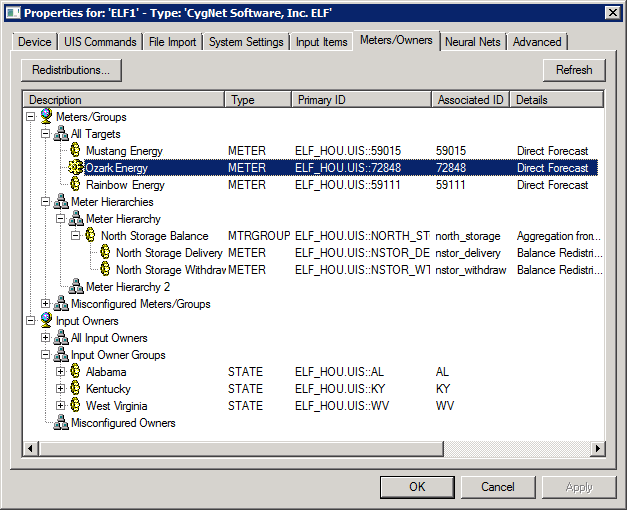
The properties for each section of this page are described below.
| Parameter | Description | ||||||||||||||
|---|---|---|---|---|---|---|---|---|---|---|---|---|---|---|---|
|
Redistributions |
Redistributions allow a meter or group to retrieve its gross forecast value from another meter or group’s net forecast value. Click Redistributions to configure redistributions rules. See Viewing Redistribution Rules. |
||||||||||||||
|
Refresh |
Click Refresh to refresh the hierarchy of all meters and owners defined in the system. |
||||||||||||||
|
Meters/Owners |
For each meter or input owners defined in the system the following columns are displayed: Description, (Facility) Type, Primary ID, Associated (External) ID, and Details (Value Assignment/Status/Error). Select the desired hierarchy node and right-click to reveal the following menu options:
Note: When adding a New Child or a New Sibling to the ELF tree, the new Meter/Group Settings dialog box will automatically fill in the hierarchy location context for the new meter or meter group to reduce parent and/or sibling configuration errors. |
||||||||||||||
|
Click to view any Meter/Owner Tree Load Errors. |
More:
 Configuring Meter/Meter Group General Settings
Configuring Meter/Meter Group Assignment Settings
Configuring Input Owner/Input Owner Group Settings


